Multiple & Nested Libraries
Most collections aren't one flat folder — anime, sports, and wrestling often live inside your main Media folder rather than alongside it. MediaForge v1.4.0 lets you add several library paths, including nested ones, and choose a different metadata source for each.
Why nested libraries need their own rule
A single global metadata source works fine until one part of your collection needs different handling. Anime and wrestling, for example, often need TVDB's absolute or aired-date episode ordering, while everything else is better served by TMDB's default coverage. If that content lives in its own top-level folder, a global setting is enough — but if it's nested inside your main Media folder, MediaForge needs a rule for which library path "wins" for any given file.
MediaForge resolves this by matching each file to the most specific configured library path that contains it — not the first one in your list — so a nested override always takes precedence over its parent.
Adding library paths
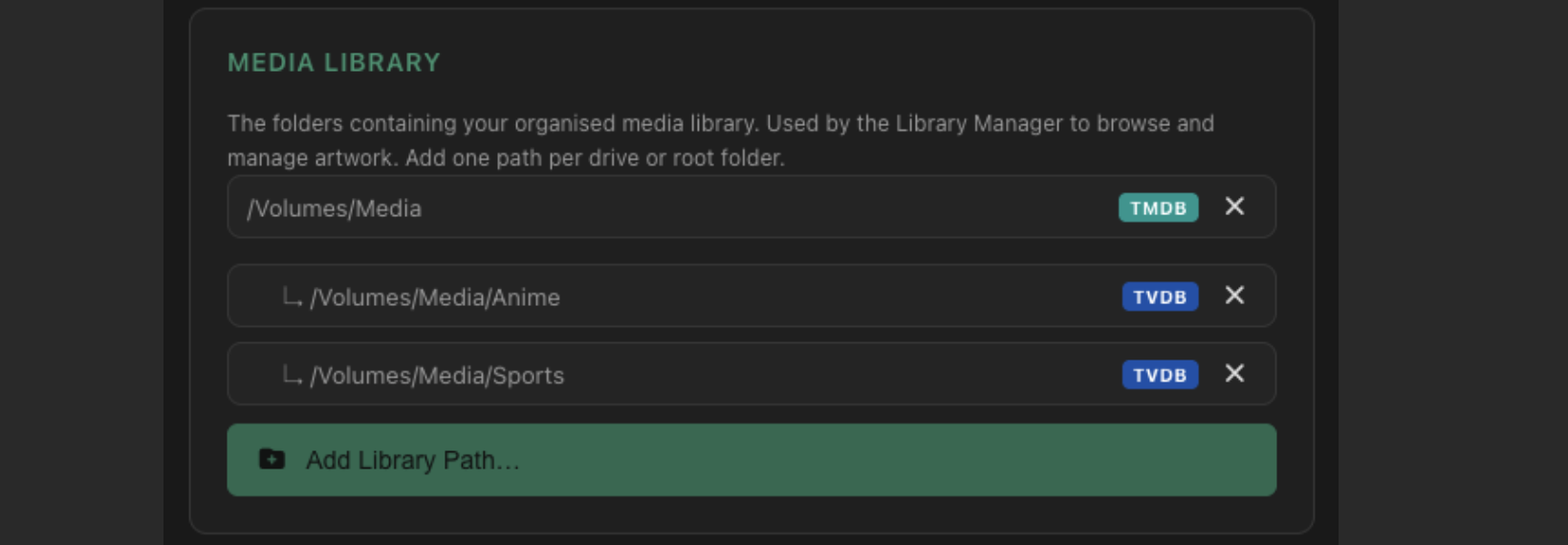
In Settings → Media Library, add one path per drive, root folder, or subfolder you want treated separately. A typical nested setup:
In the Settings list, nested paths appear indented under their parent with a resolved source badge, so the relationship and the active metadata source are both visible at a glance rather than hidden behind identical-looking rows.
Per-library metadata source override
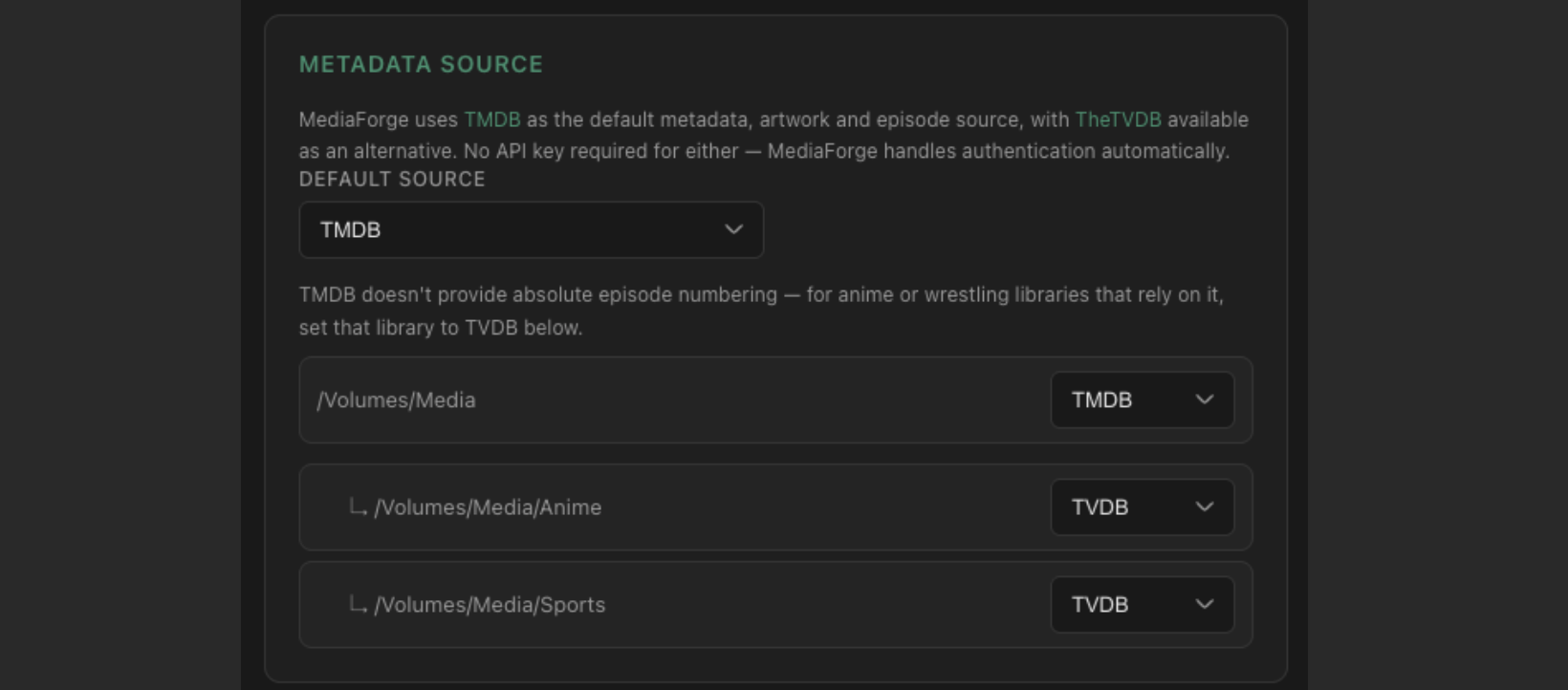
Once more than one library path is configured, a per-library override list appears in Settings. Each path can be left on Use default, or pinned to TMDB or TVDB regardless of your global default.
A file under /Volumes/Media/Anime/K-ON!/ resolves against the Anime path — the most specific match — and uses TVDB, even though the parent Media path and the global default are both TMDB. A file directly under /Volumes/Media/Documentaries/ has no matching nested path, so it falls through to the Media path and uses TMDB.
An override applies only to the exact path it's set on — it isn't inherited by folders nested even further inside it. Each configured path resolves independently.
Where the resolved source applies
Once configured, the per-library source resolution is used consistently across every pipeline that touches metadata:
- File Organiser — matching, NFO generation, and artwork downloads for files processed manually.
- Watch Folder — automatic matching and silent auto-match for files dropped into a monitored folder.
- Library Manager — browsing, Update NFO, and Download Artwork for titles already on disk.
- Sidebar Generate NFOs — bulk NFO regeneration across a library.
Wherever a resolved-source badge appears in the interface — Library Manager artwork panels, Watch Folder queue rows, Settings — it reflects this same most-specific-path rule, so what you see matches what was actually used.
Availability
Multiple and nested library paths, per-library metadata source overrides, and resolved-source badges are available in MediaForge v1.4.0 and later for all paid users on both Mac App Store and direct download (DMG) licences.
Running more than one type of collection?
Set up nested library paths once and MediaForge keeps every pipeline pointed at the right metadata source.